
Data Studio
Data Studio is an app’s home for structured data: native tables created directly or by flows, and the ontology — a semantic layer of object types, relationships, and governed actions — you build on top of them. Open it from an app’s Data → Data Studio view.
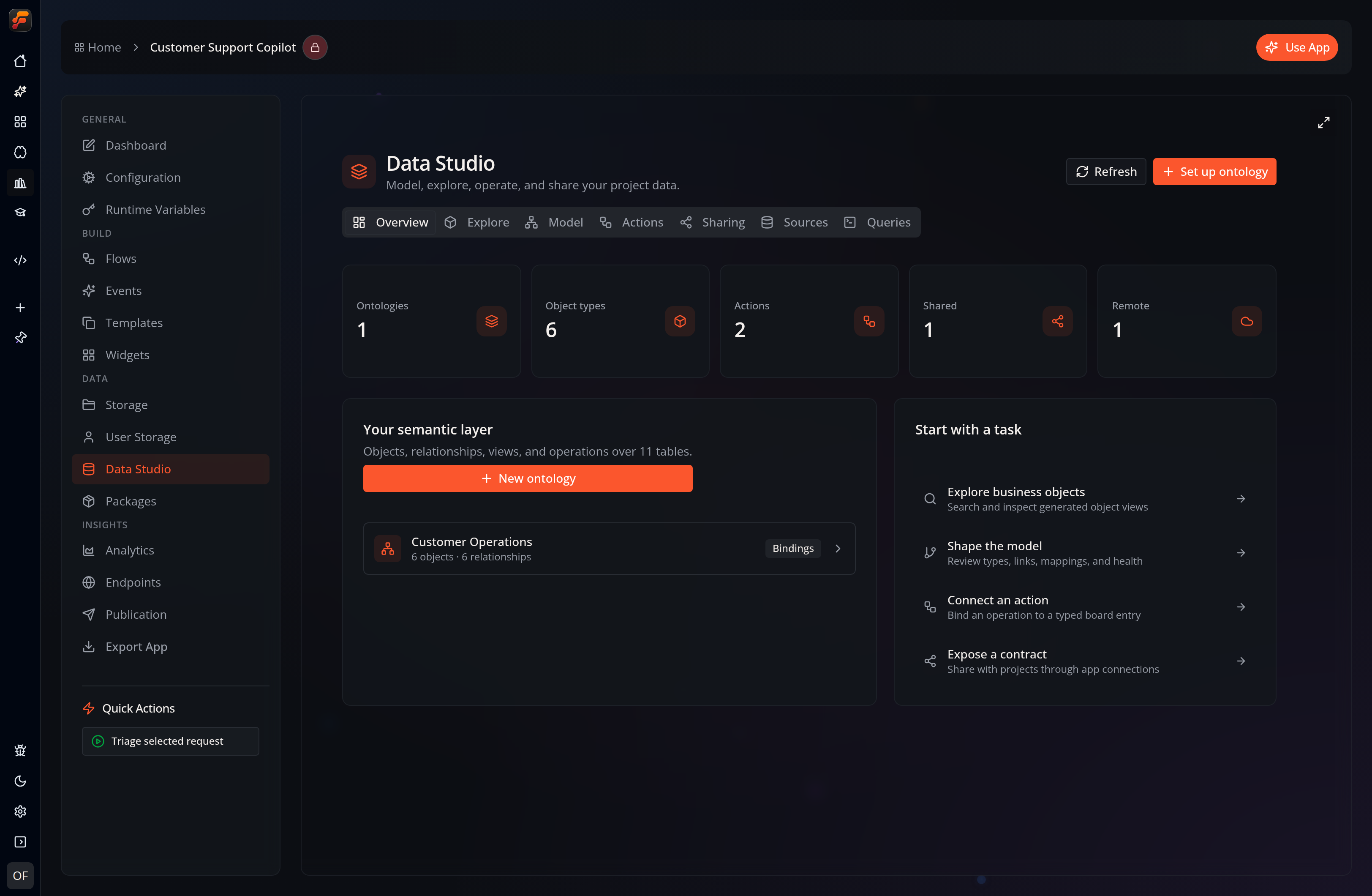
| Tab | What it’s for |
|---|---|
| Overview | At-a-glance counts (ontologies, object types, actions, shared, and remote) and shortcuts into the other tabs |
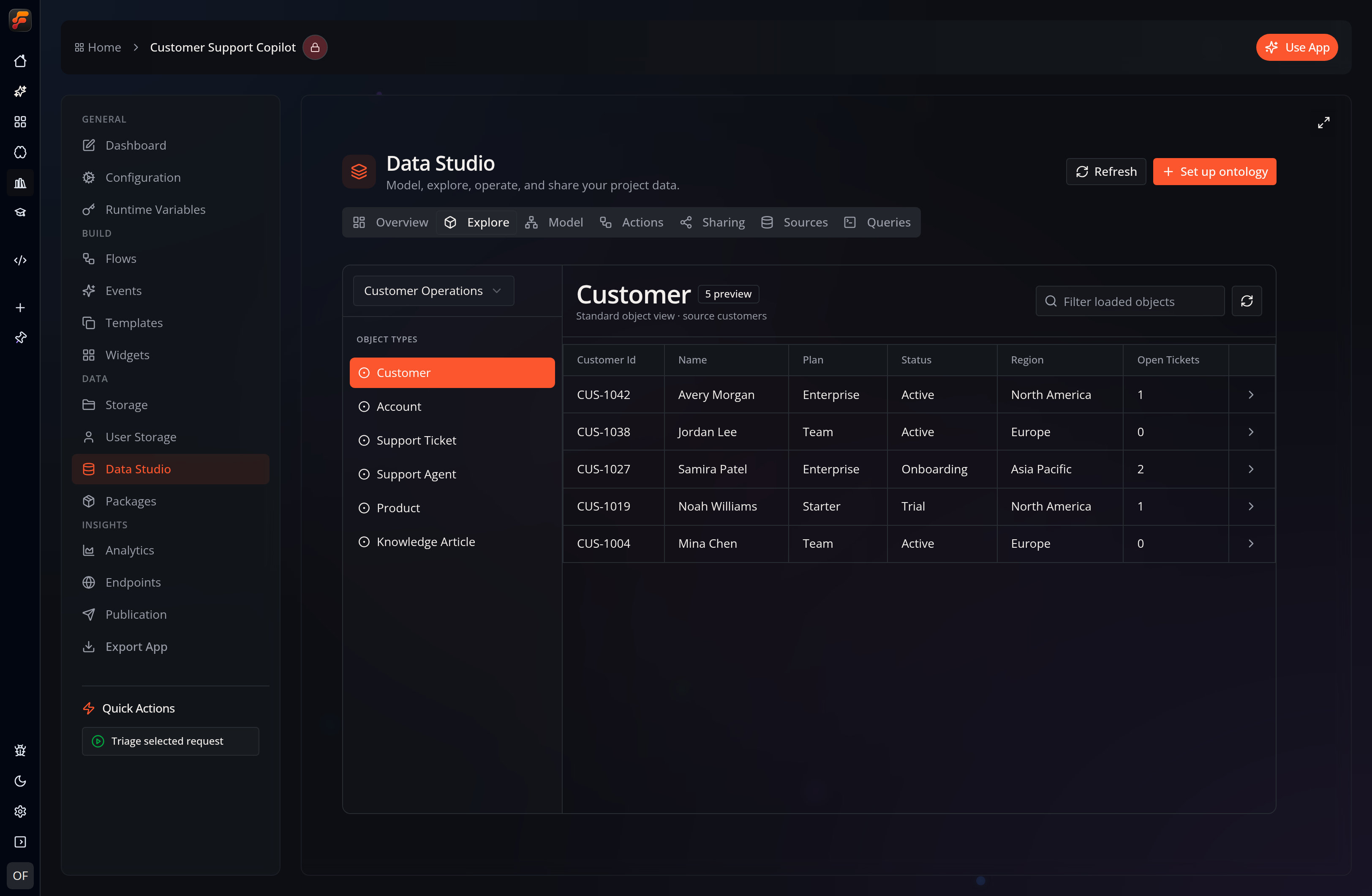
| Explore | Browse objects of each type in a preview table and open an object’s inspector — its views and available actions |
| Model | Create, rename, and delete ontologies; review object types and relationships; open the data graph |
| Actions | Define governed operations that run on an object type |
| Sharing | Expose ontologies to connected projects, and install ontologies published by others |
| Sources | Create and inspect project or personal native tables, plus object types from installed remote ontologies |
| Queries | Run SQL over native tables, local ontologies, or installed remote contracts and view the result as a table, chart, relationship graph, or JSON |
Explore ontology objects
Section titled “Explore ontology objects”The Explore tab turns ontology mappings into searchable business objects. Select an ontology and object type on the left, filter the loaded preview, and open any row for its configured highlights, remaining properties, and governed actions.
Native tables
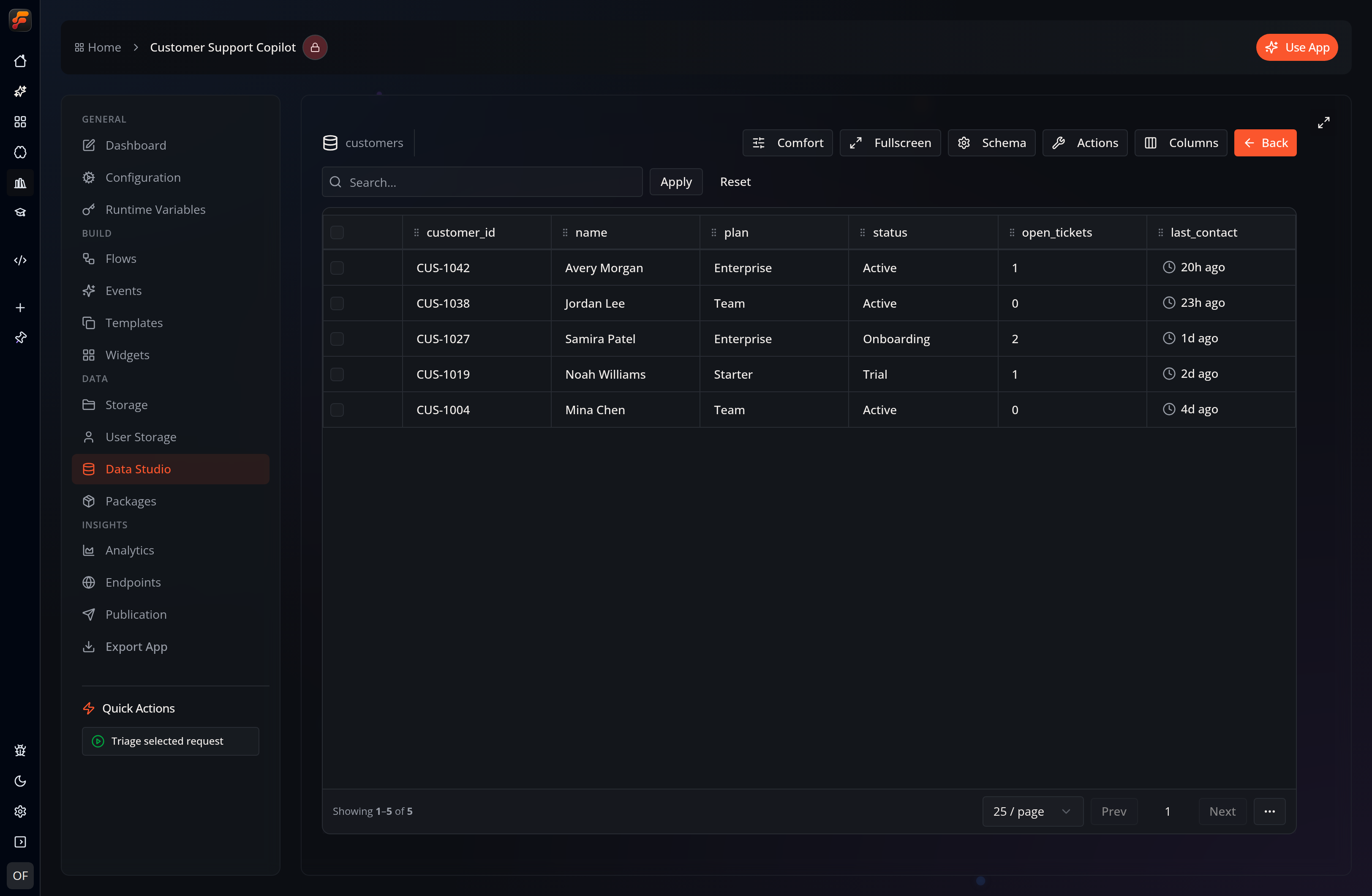
Section titled “Native tables”The Sources tab lists project and personal relational tables. Tables may be created directly in Data Studio or by flows that persist structured results. Open a source to inspect its rows, schema, and indexes:
The ontology layer
Section titled “The ontology layer”On top of those tables you can define an ontology: object types, link types, object views, and governed actions — a knowledge graph you can search, traverse, visualize, and act on without moving any data.
- Ontology & Knowledge Graph — object types, link types, the graph explorer, and actions.
- Shared & Remote Ontologies — expose an ontology to connected projects and install ontologies published by others.
Query and visualize
Section titled “Query and visualize”The Queries tab provides one SQL workbench for project tables, personal tables, local ontology overlays, and installed remote contracts. Local statements can be saved as stored queries or — when they have no parameters — reusable views. Remote statements are read-only previews and cannot be saved in the consuming project.
Results can be inspected as a data table, a configurable chart, a relationship graph, or raw JSON. The workbench preserves the query and visualization configuration together when you save a local query.
Ask FlowPilot (Data Studio agent)
Section titled “Ask FlowPilot (Data Studio agent)”FlowPilot can do the data work for you. Ask the assistant in plain language and it delegates to a Data Studio agent — a specialist with direct access to your app’s data:
- Set up and update databases: create or alter tables, build indexes, insert rows.
- Create and edit ontologies: add object types and relationships, adjust an overlay’s mappings.
- Query and analyze: write and optimize Cypher or SQL, run neighbor/subgraph/path traversals and graph analytics.
- Add graph elements: upsert nodes and edges into an overlay.
- Run actions: list, describe, and execute governed ontology actions on selected objects.
- Visualize: return the answer as an interactive chart.
Every reply is transparent: the agent shows the query it ran (in a collapsible block), a step log of what happened, links, and — when it helps — an inline chart.
When you have a Data Studio page open, the agent defaults to that app and ontology automatically. You can also ask about a different project’s data in the same conversation; it will target the other app when you name it (subject to that project’s sharing settings).
The Data Studio agent runs on a tool-capable FlowPilot model (Claude Code, Codex, or GitHub Copilot). Mutating steps—creating tables or overlays, adding elements, and executing actions—follow the approval mode selected for the current FlowPilot session.