Ontology & Knowledge Graph
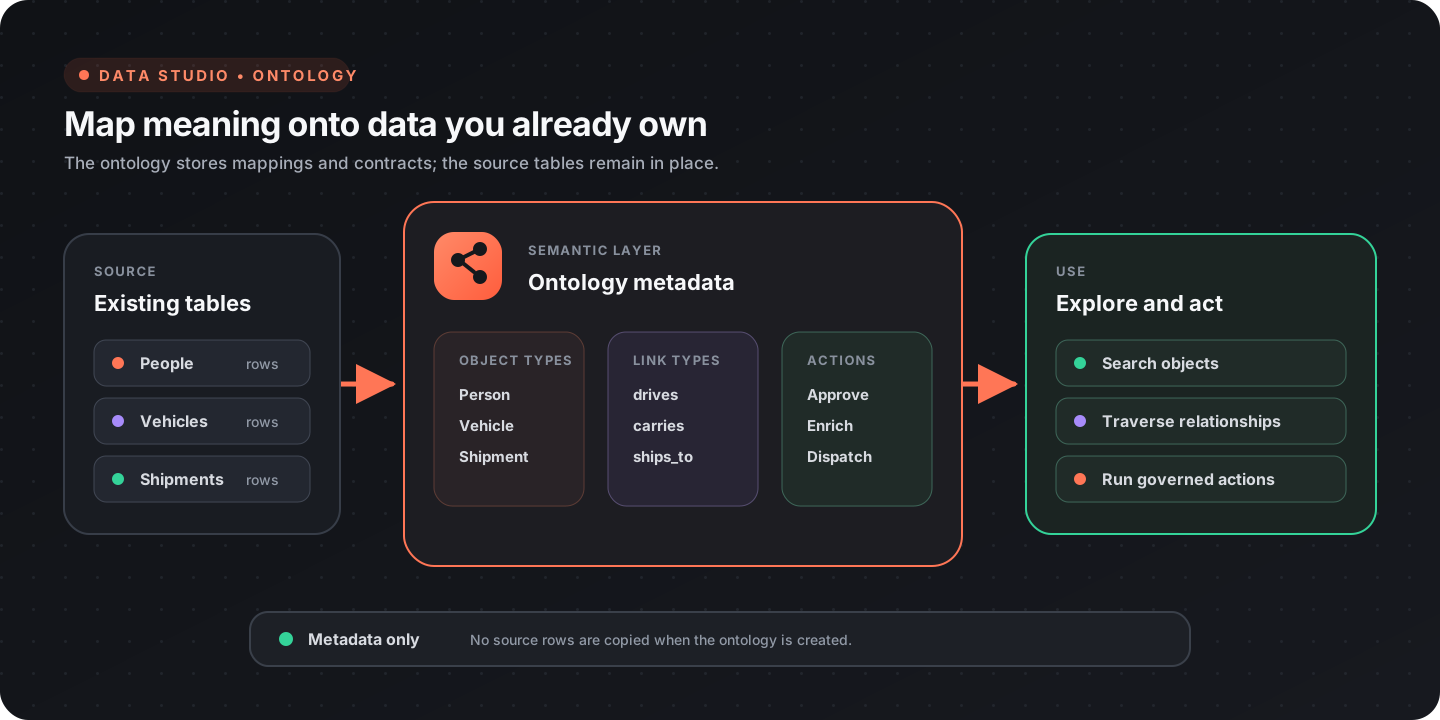
An ontology is a semantic layer you place over the database tables you already have. Instead of thinking in rows and columns, you describe your data as object types (Person, Vehicle, Shipment…) connected by link types (drives, ships_to, works_at…). Flow-Like then lets you search, traverse, visualize, and run governed actions on those objects — a full knowledge graph — without moving or copying any data.
Where it lives
Section titled “Where it lives”Everything is in Data Studio, an app’s Data → Data Studio view. Data Studio has these tabs:
| Tab | What it’s for |
|---|---|
| Overview | At-a-glance counts (ontologies, object types, actions, shared, and remote) and shortcuts into the other tabs |
| Explore | Browse objects of each type in a preview table and open an object’s inspector — its views and available actions |
| Model | Create, rename, and delete ontologies; review object types and relationships; open the data graph |
| Actions | Define governed operations that run on an object type |
| Sharing | Expose your ontology to connected projects, and install ontologies from others |
| Sources | Create and inspect project or personal native tables, plus object types from installed remote ontologies |
| Queries | Run SQL over native tables, ontology overlays, or installed remote contracts and visualize the results |
The building blocks
Section titled “The building blocks”Object types
Section titled “Object types”An object type maps one table to a kind of entity. Each object type has:
- Object name — the human-readable label (e.g.
Sales Order). Free-form; spaces are fine. - API name — a stable identifier used by generated nodes and the API. Sanitized to letters, digits, and underscores, derived from the object name by default, and editable.
- Unique ID — the column that uniquely identifies each object.
- Display property — an optional human-readable caption (e.g. a name or title); defaults to the unique ID.
- Property columns — the columns projected onto each object.
Link types
Section titled “Link types”A link type maps a table to a relationship between two object types — a source object, a target object, and the columns that hold their IDs. Link types power traversal (“who does this person know?”), path finding, and the graph view.
Graph overlay
Section titled “Graph overlay”An overlay is the whole ontology: its object types, link types, styling, object views, and actions, stored as a single metadata record inside the same database as the tables it references. Because it lives next to the data, scope is automatic — a project overlay lives in the project database, a user overlay in the user database.
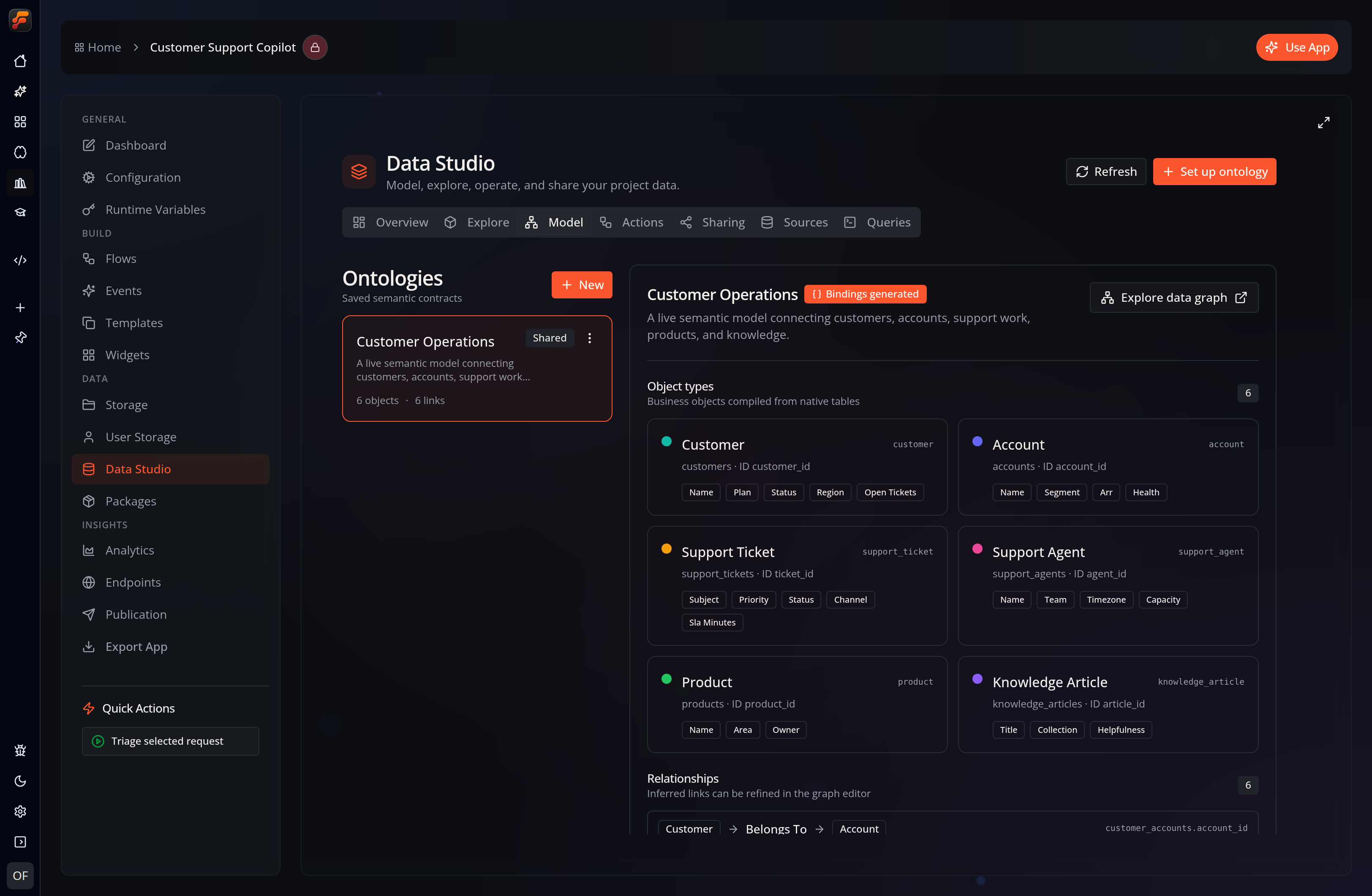
The Model view is the saved semantic contract. It makes the mapping explicit: every object points to a source table and identity column, and every relationship names its source and target types.
Hierarchy & composition
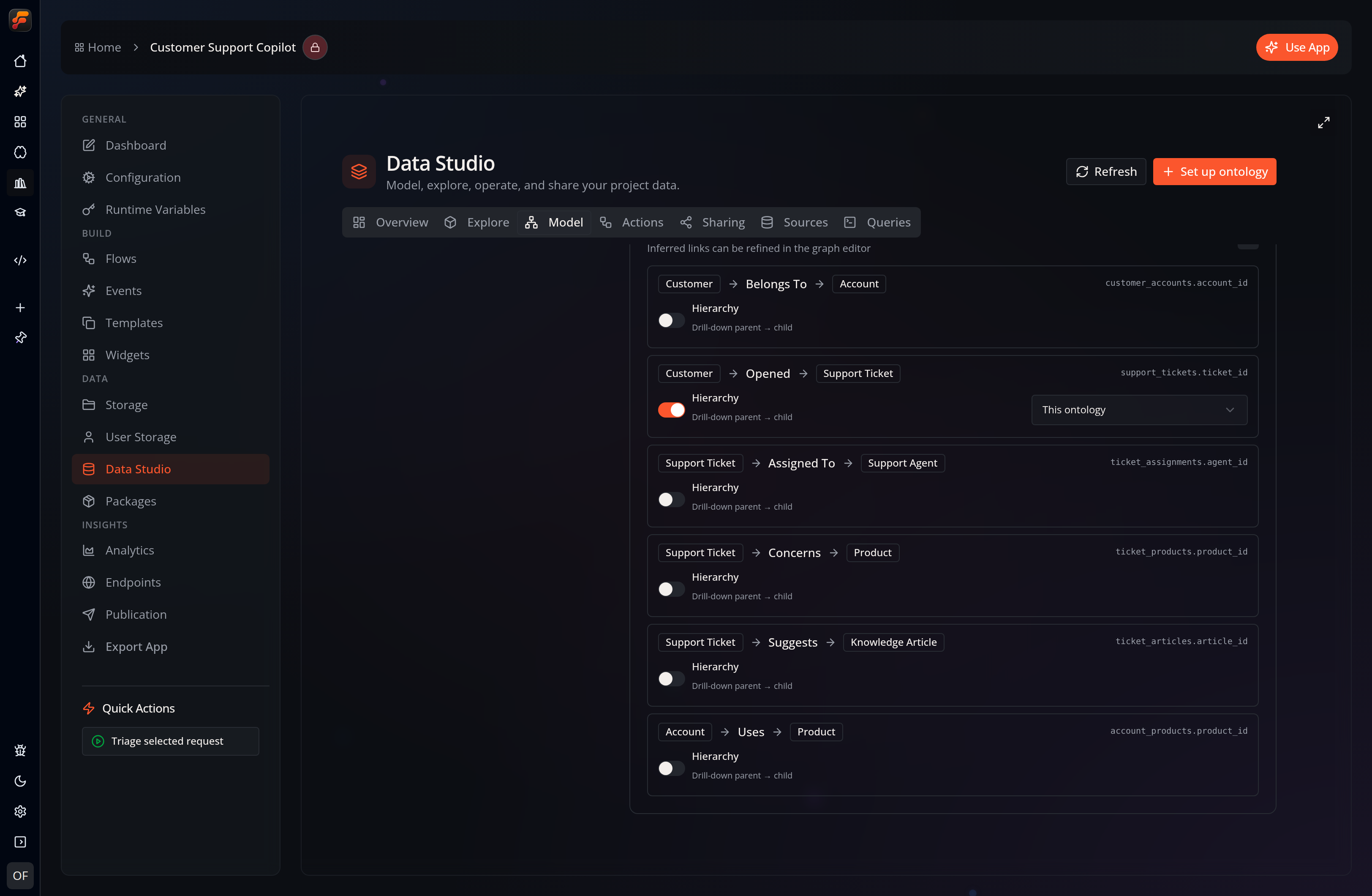
Section titled “Hierarchy & composition”Any link type can be marked as containment — a parent → child hierarchy edge. The link’s source object type is the parent and its target is the child (for example Department → Person, or a self-referential Department → Department). Containment turns a flat set of object types into a drill-down tree you can expand and collapse on demand, following only the hierarchy edges rather than every relationship.
A containment link can also reach into another ontology, so you can build one ontology out of others:
- Another local ontology — the child objects are defined by a different overlay over the same database.
- An installed remote ontology — the child subtree lives in a connected project.
This lets you model something like Plant → Departments → People → HR, where each level may be owned by a different ontology, and drill in only as far as you need.
Drilling in
Section titled “Drilling in”In the Explore data graph, expanding a parent object loads just its direct containment children — lazily, one level at a time — and collapsing hides the subtree again. Children mapped by another local ontology are loaded from that ontology. Children that live in an installed remote ontology are expanded from boards with the Query Remote Ontology Children node instead (see Shared & Remote Ontologies), so the producer resolves them across the connection.
Setting one up
Section titled “Setting one up”Select Set up ontology from the Data Studio header, or Model → New, to open the setup wizard:
- Sources — pick the project tables to include.
- Objects — Flow-Like includes the table properties automatically. Review each object name, API name, unique ID, and display property. Duplicate names or API names are flagged inline.
- Relationships — Flow-Like proposes links from ID-shaped column names such as
customer_id; it does not require database foreign-key constraints. Review, rename, mark containment, or remove the proposals, and keep your edits as you move between steps. - Publish — the draft is checked against the live database. Mapping errors block creation and are shown inline. If the validation request itself is unavailable, the wizard warns you and lets you decide whether to continue.
Once saved, the ontology appears in Model, and — if bindings are enabled — its objects become available as board nodes (see below).
Exploring the graph
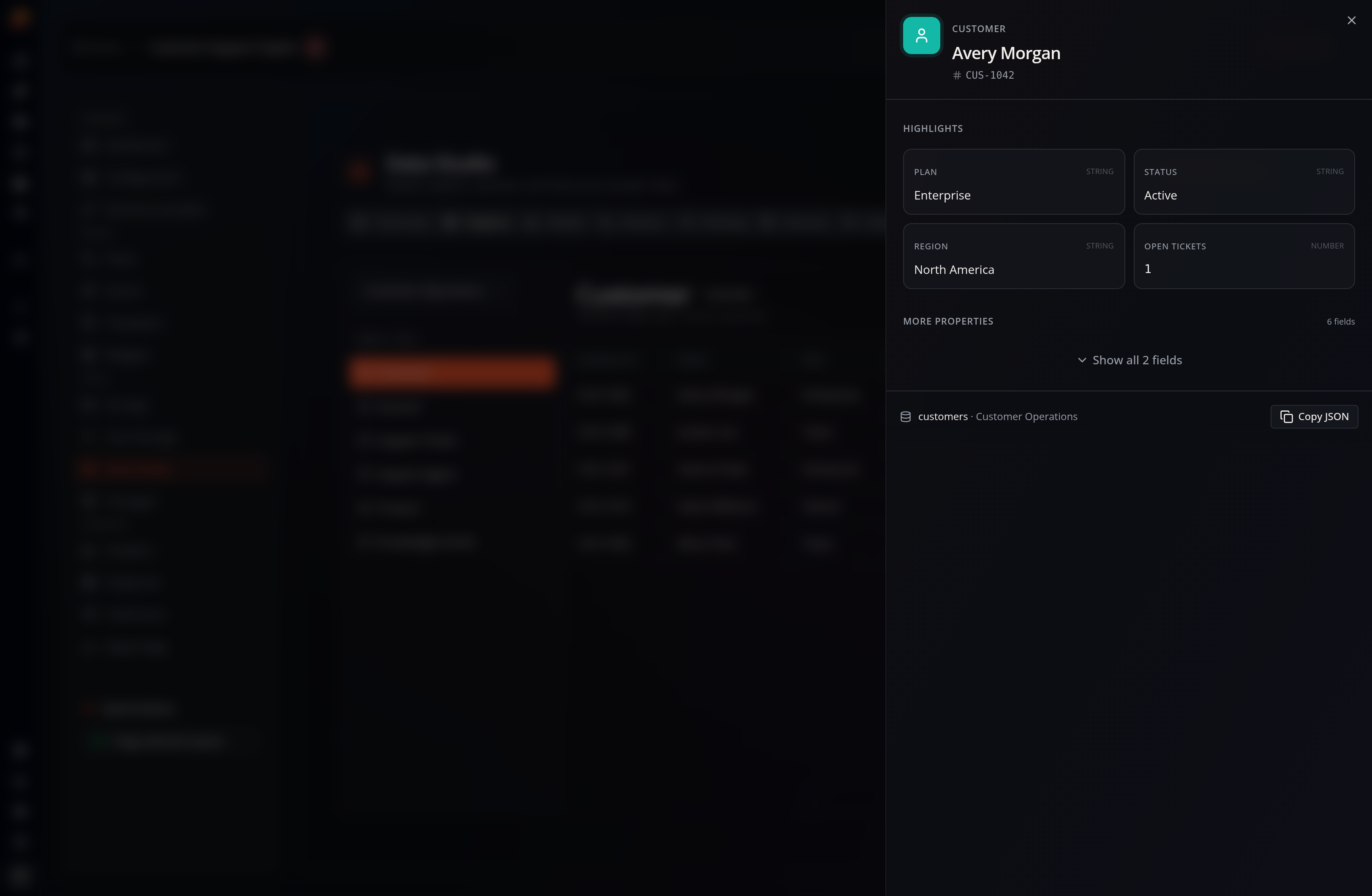
Section titled “Exploring the graph”Start in Explore when you want a table-shaped object preview. Opening an object shows the configured title and prominent properties first, followed by its remaining fields and available actions:
Open an ontology’s data graph — from Model → Explore data graph — to see your objects and links in a WebGL graph:
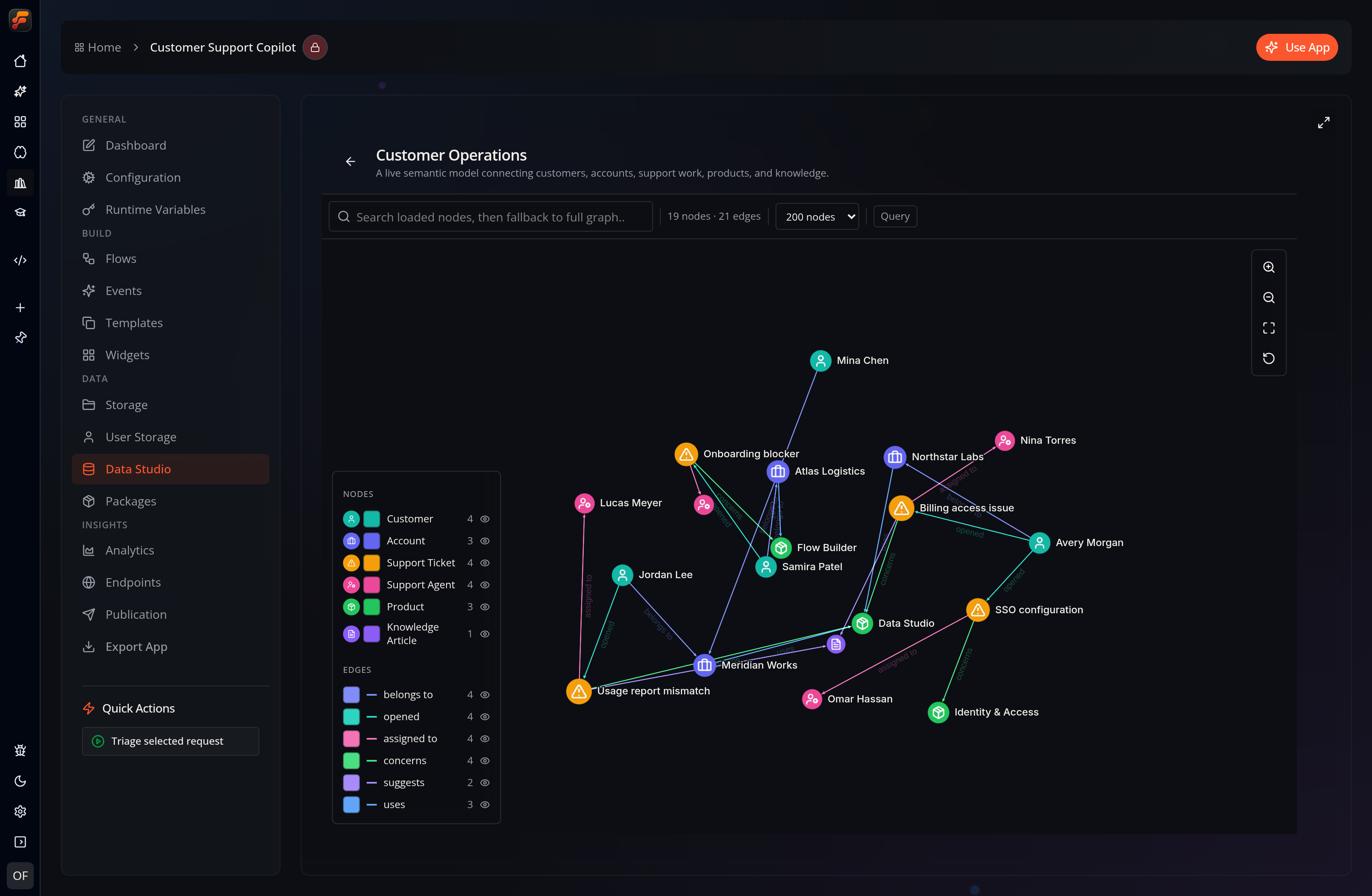
- Search matches loaded nodes first, then falls back to a full-graph search.
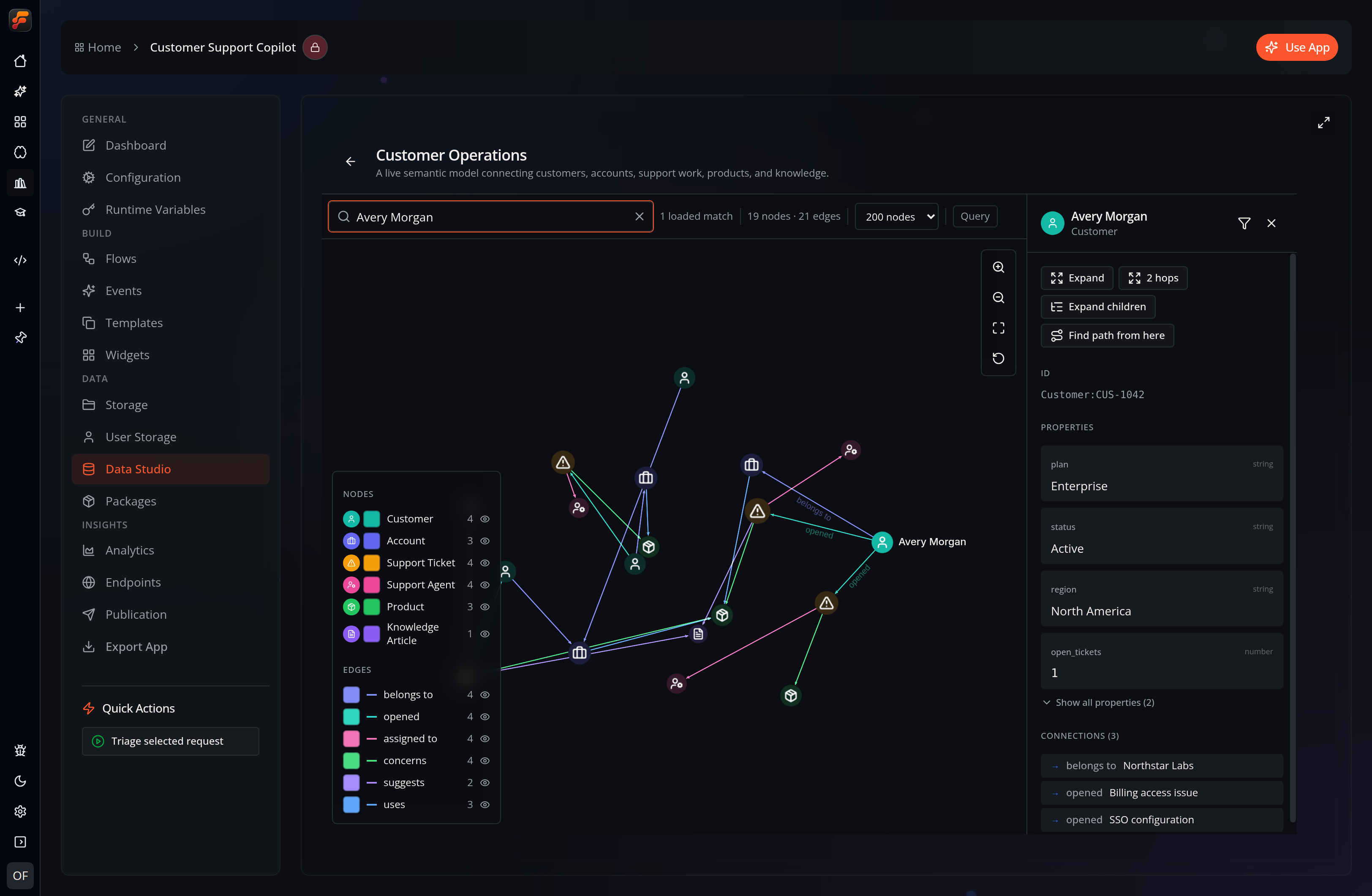
- Click a node to open its inspector; shift-click (or the inspector’s Expand) pulls in its neighbors, one or two hops at a time.
- Find paths — from a node’s inspector, choose “Find path from here”, then click a second node. Flow-Like returns the shortest connections (with alternative routes) and highlights them. This is the “how are these two things connected?” question.
- Object views — the inspector shows a title property and prominent properties first, and offers any actions defined for that object type.
Graph-wide analytics — object counts, connected components, and the most connected / most central objects — is available through the Graph Analytics node (see below).
Actions on objects
Section titled “Actions on objects”An action is a governed operation that runs on an object type — “Approve order”, “Enrich contact”, “Dispatch vehicle”. Define one in the Actions tab:
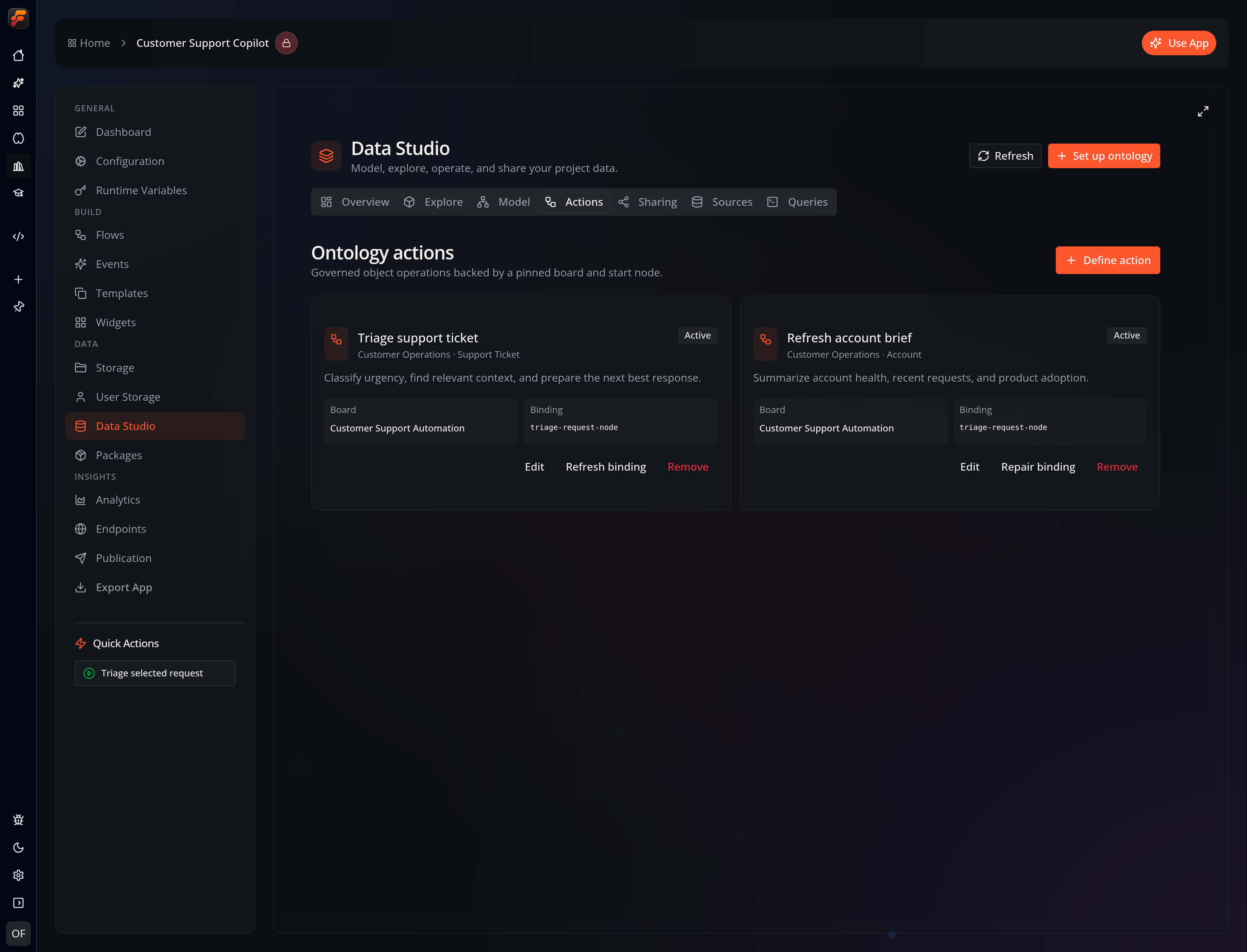
Open Define action or edit an existing binding to choose its exact implementation:
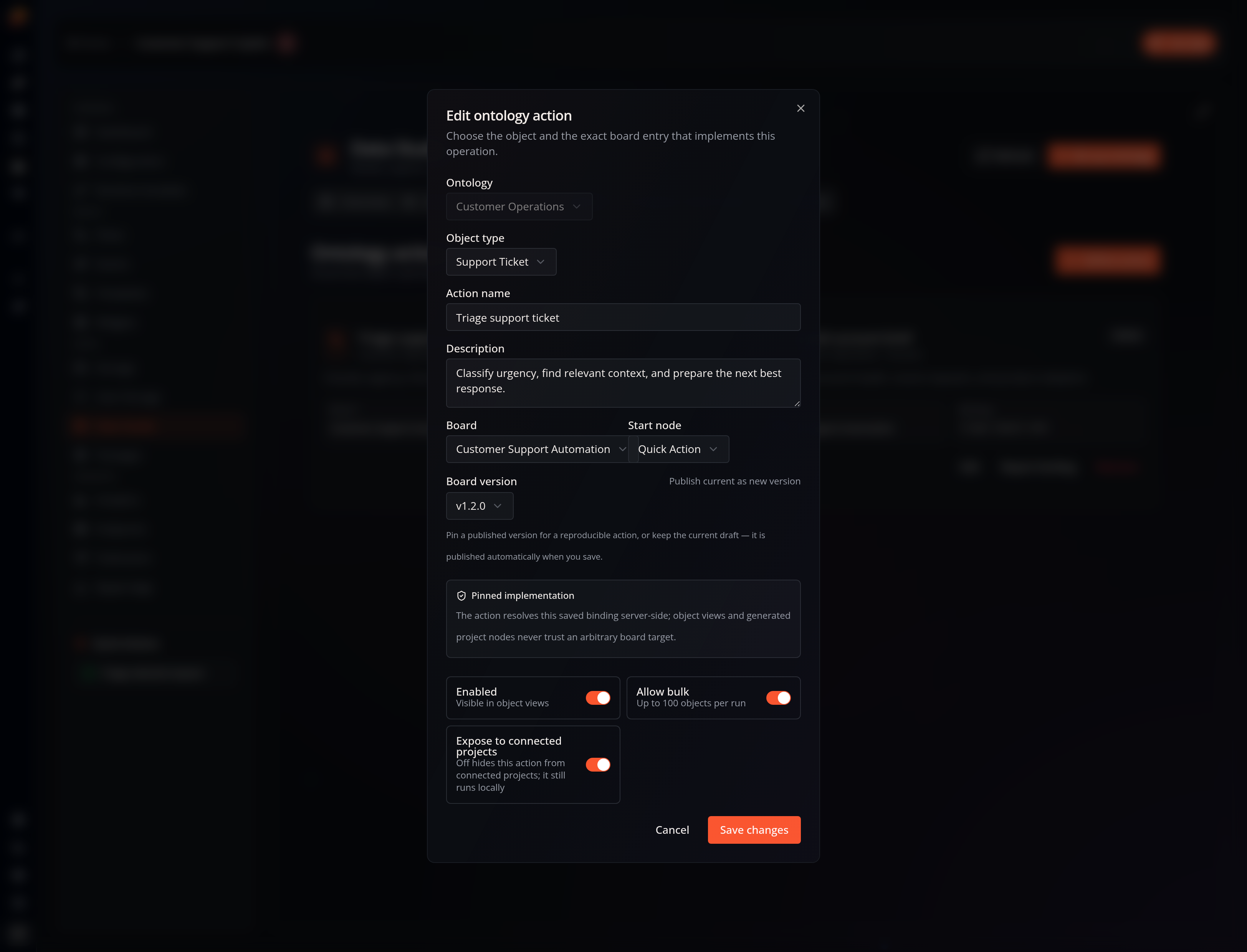
- Object type the action applies to, and an implementation board plus its start node.
- Board version — pin a specific published version for a reproducible action, or keep the current draft (it is published automatically when you save). Pinning to an immutable version is what makes an action safe to expose and re-run.
- Parameters — inferred from the start node’s
parameterspin schema, and validated on every invocation. - Enabled and Allow bulk (up to 100 objects) toggles.
Under the hood, saving an action materializes a protected, version-pinned internal event and stores a hash of the whole contract. At invoke time the server re-checks that hash, so edits to ontology metadata can never widen what an action is allowed to read or execute.
Using an ontology in boards
Section titled “Using an ontology in boards”When Generate board bindings is on, the ontology contributes nodes (under Data Studio) to the app’s node catalog so your flows can work with objects directly:
- Query Ontology Objects — fetch objects of a given type.
- Prepare Ontology Action — assemble a validated, typed action request from object references. Each enabled action also gets its own binding node named after it.
There are also general graph nodes for advanced use — Cypher Query, Graph Neighbors, Graph Subgraph, Find Paths, and Graph Analytics — under Data → Database → Graph → Query.
- Shared & Remote Ontologies — expose an ontology to connected projects and install ontologies published by others.